8th module TASKMANAGER
The Taskmanager module extends the functionality of the notes from the Measurement module with a complex workflow and notification system. It is used to manage a data layer with tasks that have their location and can be assigned to other application users and record their status. The data is displayed here in a clear table and also spatially in a map. Tasks can be assigned to all users involved in the project. The task manager is also set up so that only tasks that have been assigned to a user or that the user has entered can be edited. The tasks of other users can be viewed and possibly commented on.
Overview of tasks
View tasks
In addition to the name, each task also has its Assignor (the user who created it), Solver (the assigned user who is to complete the task), status, and date of creation. Tasks in the table can be filtered by the affiliation to the logged-in user and by status, in addition to the common tools in chapter 10.2 TABLE TOOLS.

- The default view shows:
- Tasks entered by the user (the logged-in user is the Task Assignor)
- Tasks assigned to the user (the logged-in user is the Task Solver)
- The “Eye” button allows you to switch between:
- Personal tasks
- All tasks in the system
- Displayed task statuses (entered, solved, returned, cancelled, archived)
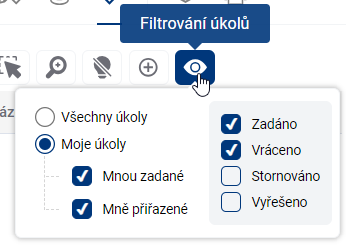
Task states
Each task is visually marked on the map with a marker with a colored dot indicating its current status:
- Orange: task completed
- Red: Task returned
- Green: task solved
- Yellow: task cancelled
- Grey: Task archived
Task management
Creating a task
- In the task table, click on “Add new task”
- Select the task location on the map
- Various map layers are available:
- Real estate cadastre
- Municipal address points
- Specialized administrator layers
- Various map layers are available:
Saving changes
- All changes to the task must be confirmed and saved:
- To save changes, click on the checkmark icon labeled “Save Changes”
- To discard changes, use the x icon with the label “Discard changes”
- This applies in particular to:
- Assigning the task to a new solver
- Changes to task status
- Editing information in a task
- Changes to the location of a task on the map
Task assignment
- You can assign a task to any user in the system
- Automatic email notifications are sent after changes are assigned and saved:
- To the contracting authority
- To the new researcher
Editing a task
- Only:
- Task sponsor
- Current assigned solver
- Change the position of the task:
- Click the pencil icon to activate location editing
- Move a point to a new position on the map
- Don’t forget to confirm the change by saving
- All changes must be confirmed by saving
Comments
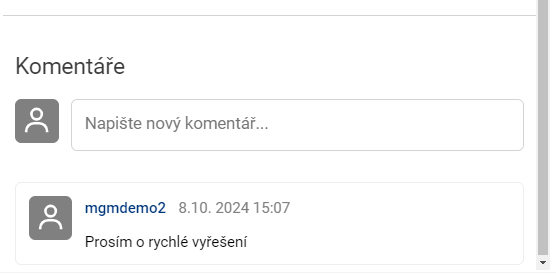
When you open the task detail form, there is a comments section at the bottom where interested users can exchange messages about the task. New comments, as well as other changes to the status of the task, are notified to users by email notifications.
- Anyone with permission to see the task can comment on the task
- Additional information can be added to the task
Workflow of tasks
Status change procedure
- Entered (red)
- Resolved (green)
- Returned (original red)
- Canceled (yellow)
- Archived (grey)
- Each change of status must be confirmed by saving
Notification
- Each saved task status change is accompanied by an email notification
- Email notifications contain a link directly to a specific task in the system
- Notifications are not sent to the user who immediately made the change. They are always sent to the “others”.
Mobile access
Functionality on a mobile device
- Viewing and managing tasks is partially functional on mobile devices