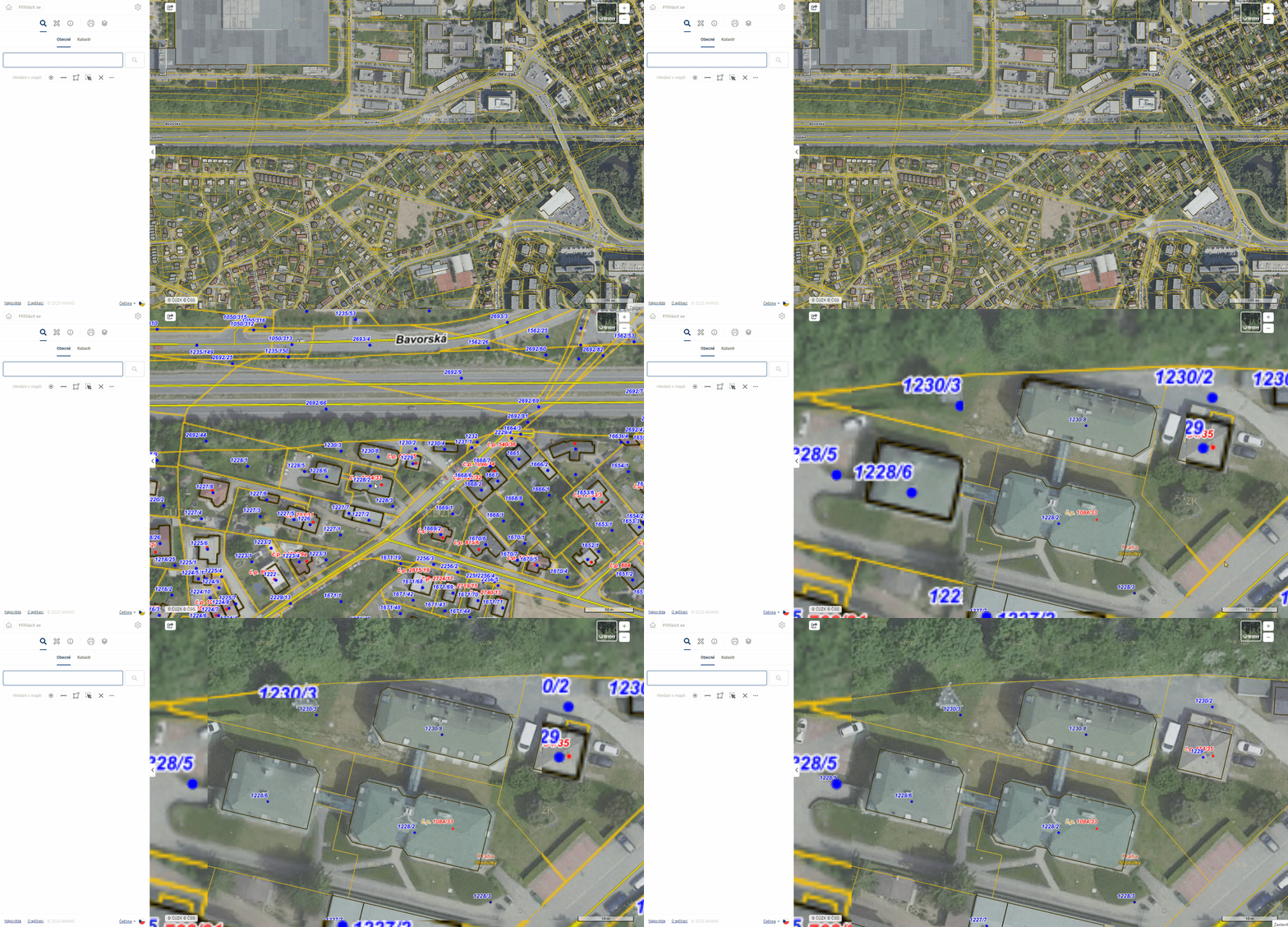
1.4. MAP WINDOW
The map window can be intuitively navigated using the mouse and zoomed using the mouse wheel or the + and - buttons. The button in between returns the map window to its default position, i.e. to the zoom and centering level when the project is opened.
The mouse wheel can also be used to move the map (by clicking and dragging) in case the drawing is currently started and the left mouse button would draw and not move.

Spatial data and underlying or user layers are displayed in the map window. The contents of the map window can be easily changed in the “Layer Organizer” (See chapter 2. Map Layer Organizer).
- the Project data layers are displayed according to the logged-in user and the selected project. This can display technical administrator maps, DTMs, passports and others that are stored in the geoportal database or connected via WMS. The image below shows the lighting passport.
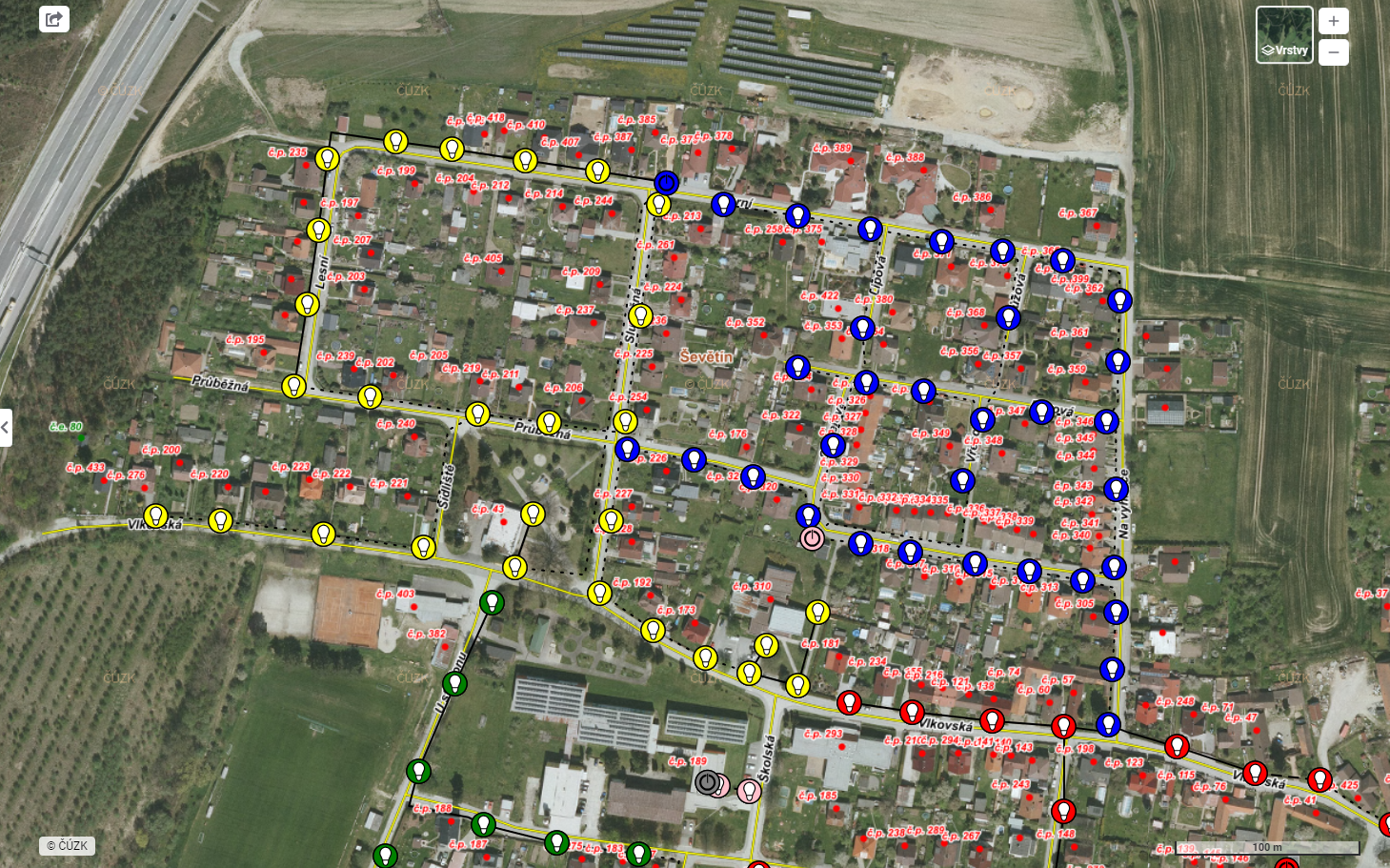
-
User layers = layers of search, drawings and temporary user imports.
-
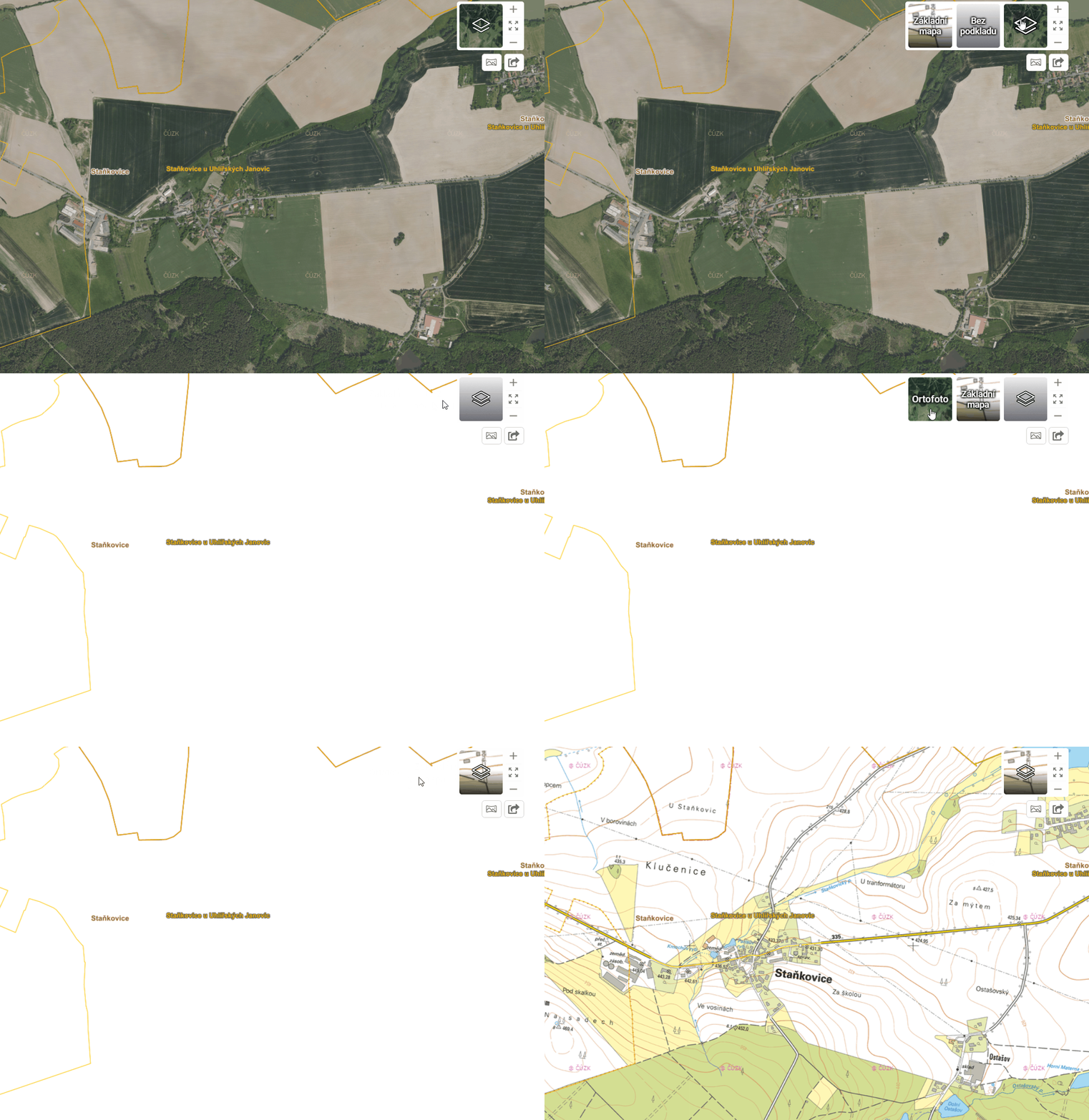
Basemap is set according to customer requirements. By default, the project is accompanied by an orthophotomap and a base map from ČÚZK.
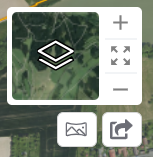
To change the active base map, you can simply change the active base map directly in the top right corner of the map window.
There is also a button to turn on/off the positioning of the device on which the application is running. 
The contents of the map window can also be easily exported using the tool in the upper right corner. You can directly save the map window as a .PNG image, create a link to share the created image or quickly download it. Such an image or link can be sent by the application user to colleagues or saved for future use.

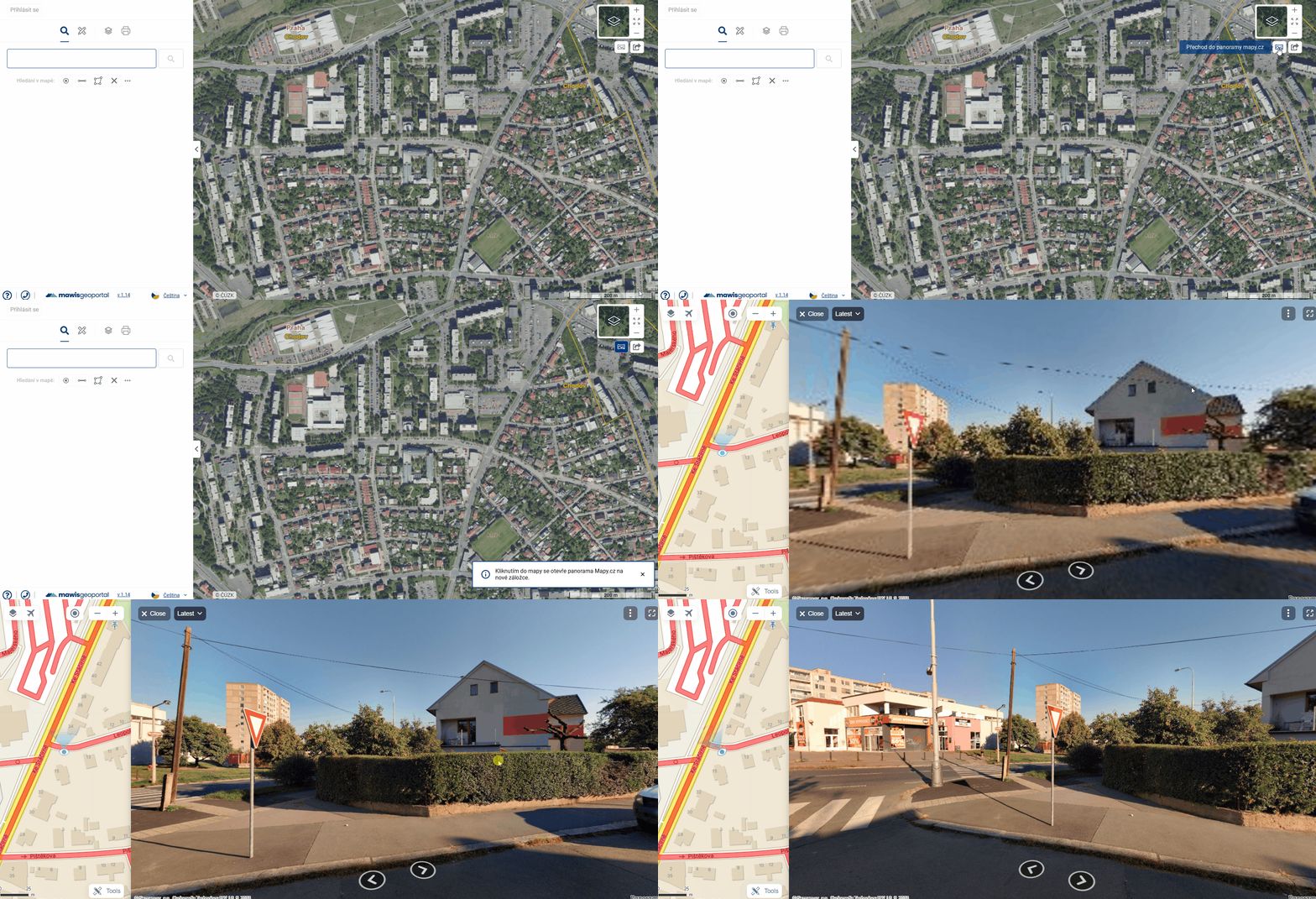
Another map window tool is Go to Panorama mapy.com/Google maps. After activating it, it is possible to click into the map and this will open a new tab in the browser with a panoramic view/map in mapy.com in the selected location or a view into Gogle Streetview/map, depending on the specific settings of the project.
The map window also displays the graphical scale (in the lower right corner) and the copyright of the external services used (in the lower left corner).
 By pressing SHIFT and dragging the mouse at the same time, you can quickly zoom to the selected area.