4. SEARCH
The general search displays address locations, parcel definition points and features from Data Layers in the map window based on a simple text or spatial search. When it is opened, a text search box is available and a spatial search toolbar below it.
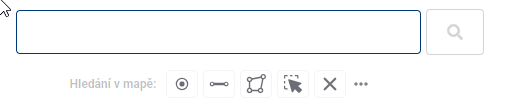
- Text search
For a simple text search, just type the desired text or part of the text into the designated field and press Enter or click the magnifying glass icon. Clicking the X on the right side of the field allows you to easily clear the field’s contents and the search results. Clicking the X also removes pins from the map and the taskbar and closes any open pop-ups (e.g., the pin pop-up or the pop-up showing the searched coordinates).
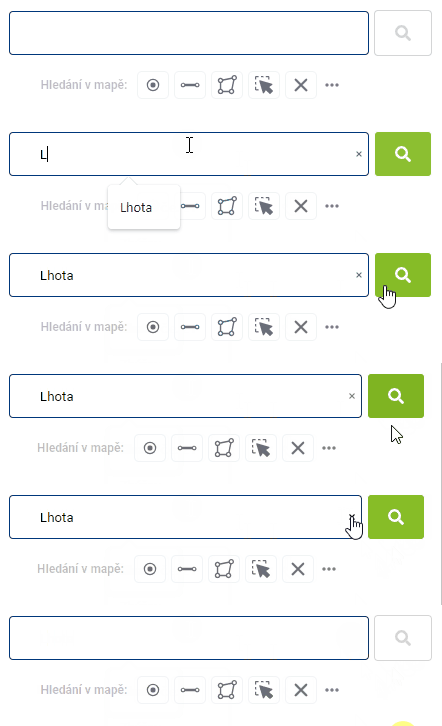
 Search results are sorted from the closest result according to the current location on the map.
- Search by Coordinates
You can also enter coordinates into the text search field—the app will recognize them automatically and, instead of displaying results from addresses, parcels, and data layers, will zoom directly to the specified point. The point will be highlighted on the map with a turquoise cross and its own category, and it will not appear in the list of results.
Supported formats:
- WGS84 (degrees) 50.0542500N, 14.3248392E
- WGS84 (degrees, minutes) N 50°3.25500’, E 14°19.49035’
- WGS84 (degrees, minutes, seconds) 50°3’15.300“N, 14°19’29.421“E
- All WGS variants without “N” and “E”—the application assumes northern latitude and eastern longitude
- S-JTSK -746913.64, -1153271.80
- S-JTSK x:-750152.27, y:-1045726
- URL from mapy.com: https://mapy.com/cs/turisticka?x=14.3247908&y=50.0540073&z=18
- URL from Google Maps: https://www.google.com/maps/@50.0546653,14.3254507,17.75z
To be recognized as coordinates, the entry must contain a decimal point or comma, a degree symbol, or a cardinal direction (N/E). Two separate integers (e.g., 50 14) are not considered coordinates and are searched for in the usual way among addresses, parcels, and features.
Spatial search
The spatial search toolbar consists of the following tools:
- Point selection - allows you to plot one or more points on the map
- Line selection - used to draw lines
- Polygon selection - used to draw polygons
- Selection of drawn elements - by clicking on the previously drawn element you can select the element
- Delete drawn shape - deletes the selected shape or all drawn shapes at once
Drawing of shapes is done by clicking into the map, where for line and polygon each click adds a new break point of the element, clicking left and right mouse button on the same place will end the drawing, in case of polygon it will close it at the same time. Shapes can be edited by moving the breakpoints and by adding a new breakpoint to the line. A breakpoint can also be removed by pressing and holding the “CTRL” key and clicking on the selected point.
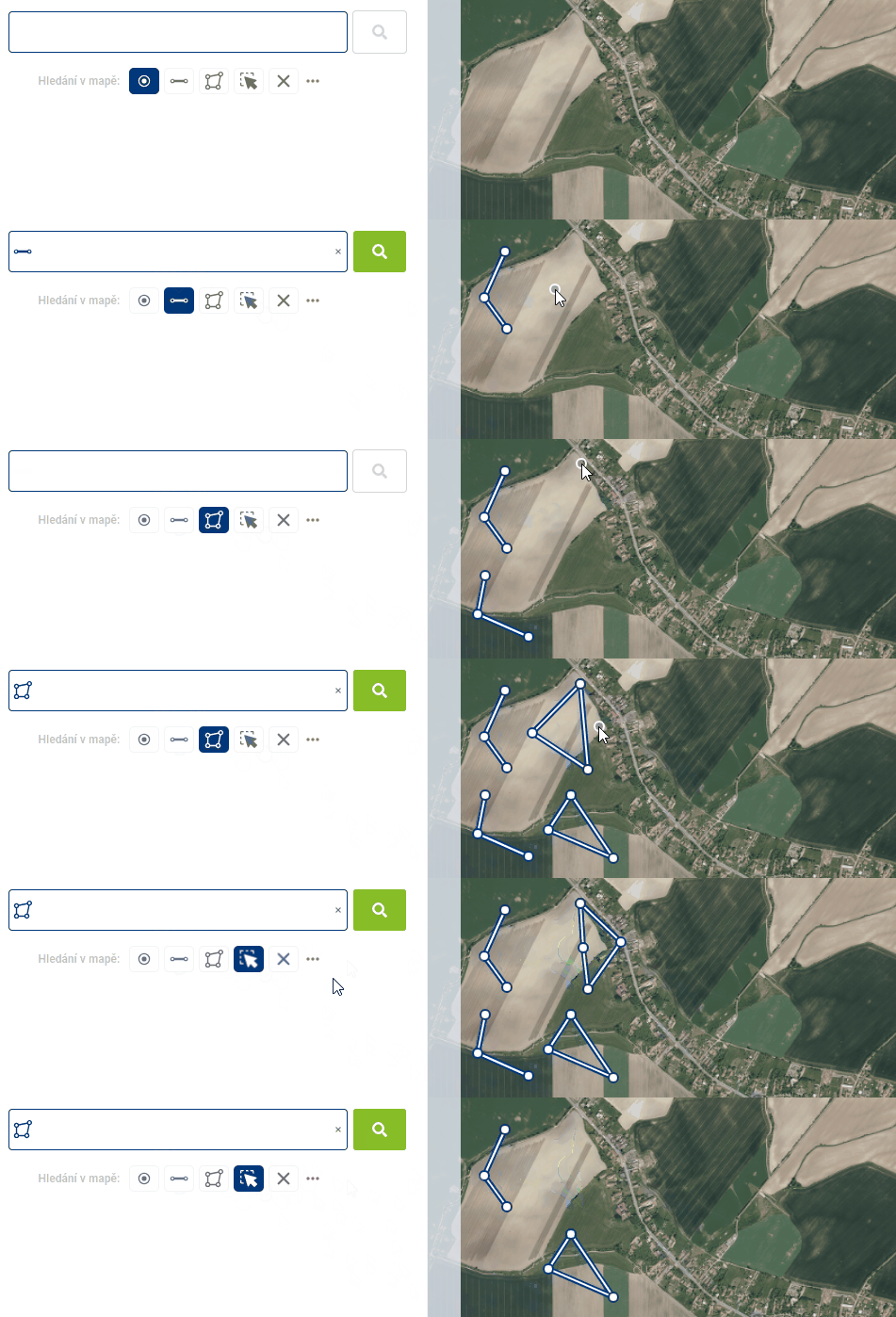
While it is possible to have different shapes drawn in the map window at the same time, the selection is only possible with one geometry type per search. Which geometry type will be used can be seen in the text box. The search is performed again by clicking on the magnifying glass icon.
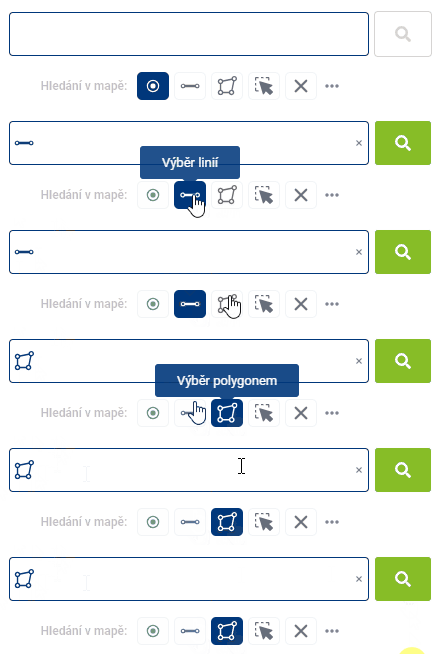
Spatial search can be combined with text search. For example, you can search for all address locations containing a certain text in a plotted area.
Working with results
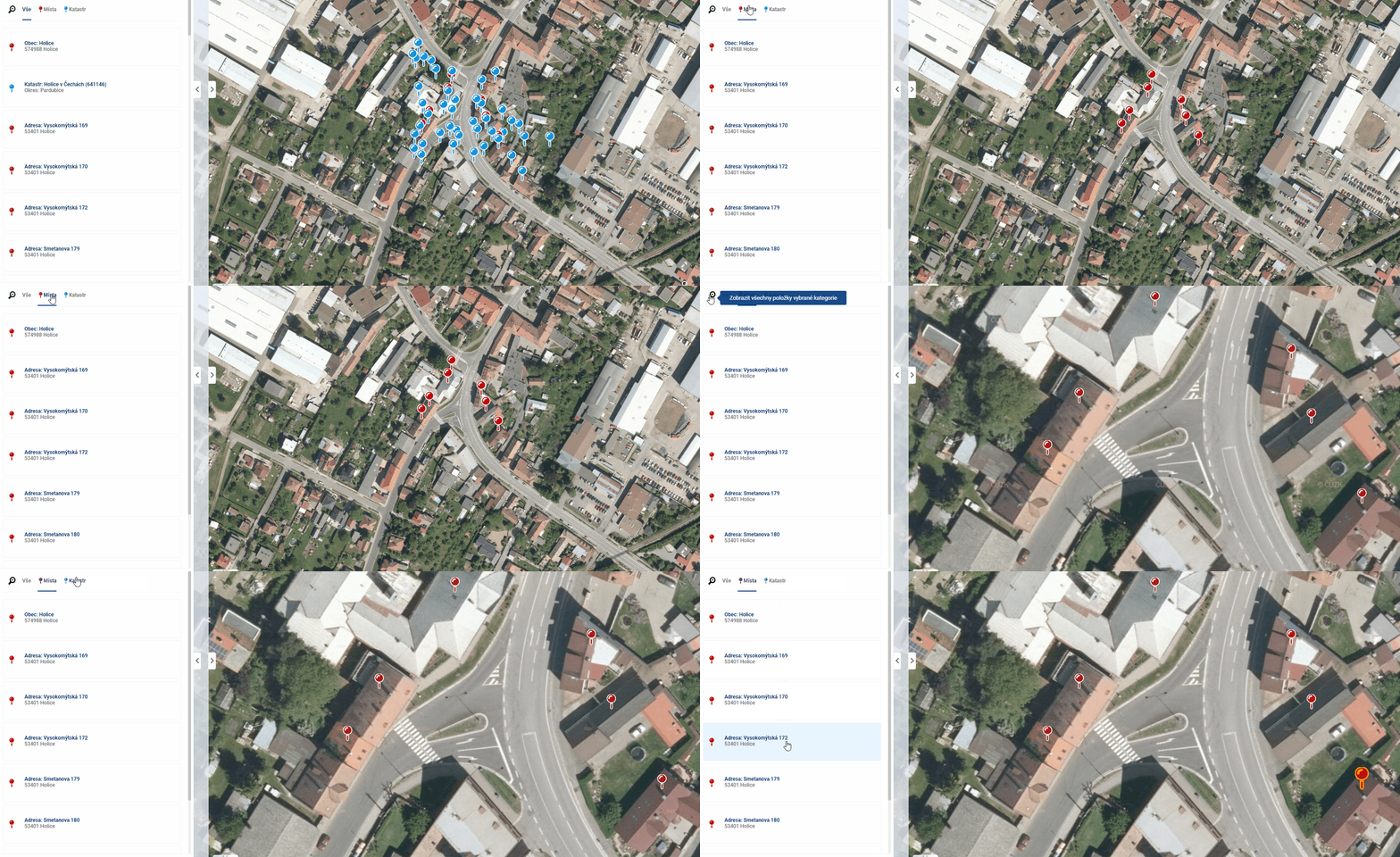
The records retrieved by the search are then displayed in the workbench under the search tools. These results can then be filtered according to whether it is an address location (red), a parcel from the cadastre (blue) or an element from the data layers (green), zoom the map to the selected points using the magnifying glass icon and highlight the element in the map by hovering the mouse over the record in the work panel.
Clicking on an item in the Workbench will highlight the point in the map window and open a pop-up menu with details. The Cadastre data can also be displayed in the Display Panel using the “i” icon included in the record in the Work Panel or the icon in the bottom right corner of the popup, while the data for the search results in the data layers (Evidence) will open in the Work Panel when the icon is clicked.
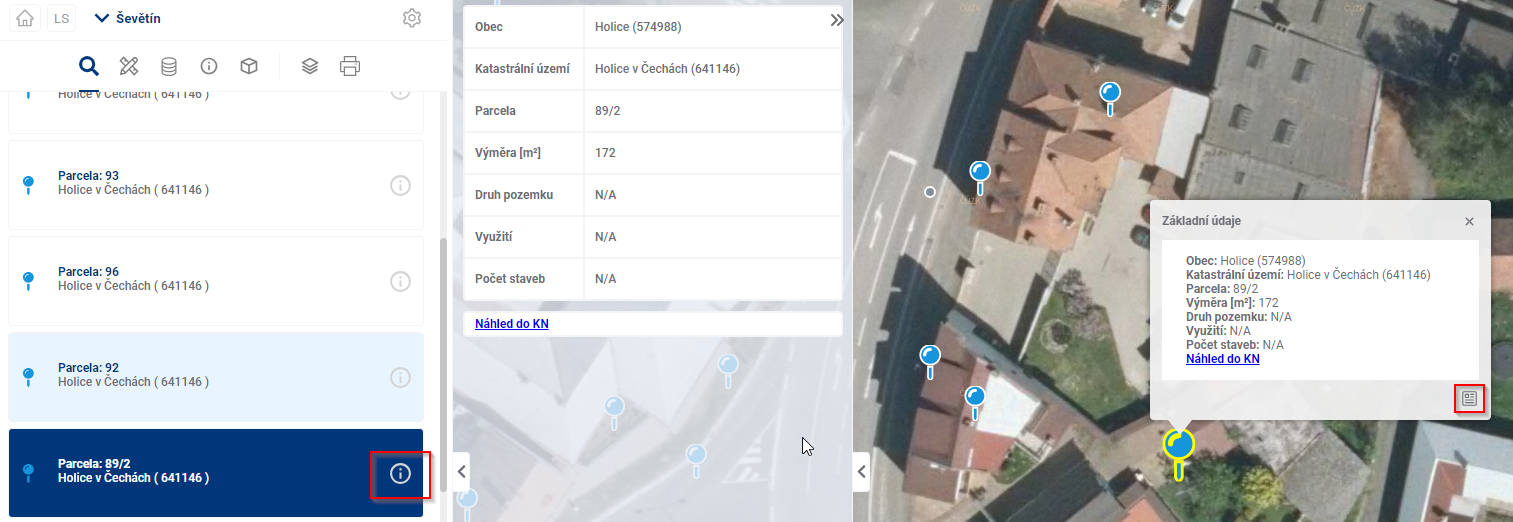
Click on a search result in the map to see the basic details in a pop-up window. Double-clicking on a search point in the map also displays the point details in the viewport.