1.2. WORKING PANEL
The work panel allows basic control of the geoportal and work with data. The user can search the data, work with cadastral data, perform measurements and especially view and edit attribute data.
The work panel is divided into four sections:
- UPPER FOX

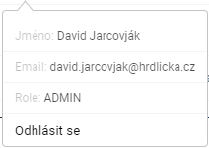
In this part of the work panel, the user can log in and view basic information about the logged-in user (name, email and role). Alternatively, it is possible to log out of the application.
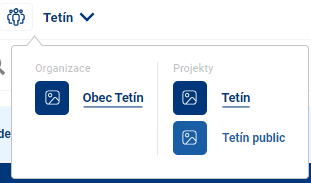
After logging in, the user is shown the available geoportal projects and can switch between them. (See chapter 1.2 Login and projects)
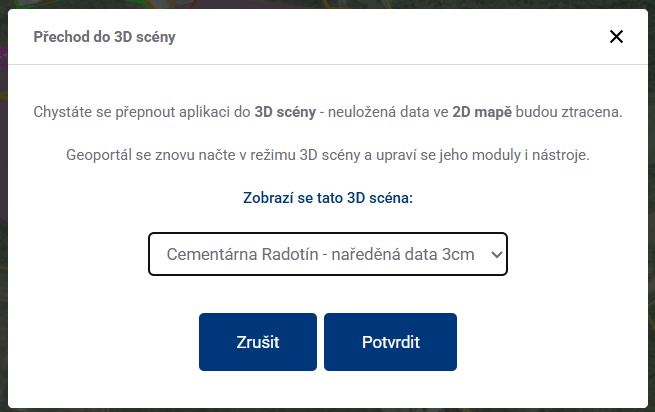
In the right part of the bar there is a switch  between 2D and 3D state of the project, you can switch to 3D only when the project includes a 3D scene. When clicked, a dialog box will appear with a selection of the scene you want to switch to.
- TOOLBAR

The toolbar displays the available tools for the project. The tools vary depending on the project the user is logged in to and the license/module purchased. For example, in a public project without login, the following tools are available:
- General search
- Measurements
- Layer organiser
- Map export.
The individual geoportal tools and their options are described in detail in the following chapters.
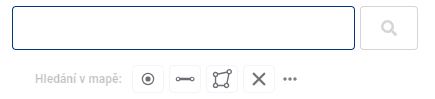
Other available toolbar functionalities vary according to the selected tool that the user has active. The active tool is underlined in the toolbar. In this section, the actual work with data, search, measurement and more takes place.
- WORK PANEL FOOT

In the footer of the working panel, you can find the application help, contact to the customer centre, information about the application and its current version and the possibility to switch between the available MGM languages.
On a cell phone (not a tablet), the app opens with the taskbar minimized so that the map is immediately visible. You can slide out the taskbar by tapping it.