WORKING WITH TABLE
The table of records is prepared for the MawisGeodataManagement user so that he can work with it in the best and easiest way.
Layout and table size
The user can easily adjust the layout and size of the table by stretching the working panel (by dragging the panel edge - see chapter 1.1.GENERAL OPERATION OF THE APPLICATION) and also by stretching/narrowing the table columns themselves, or by rearranging the order of the table columns.
The width of the table column can be set by pressing the left mouse button and dragging the column border in the table header. Moving the column order can be done by pressing the left mouse button and dragging the column sideways.
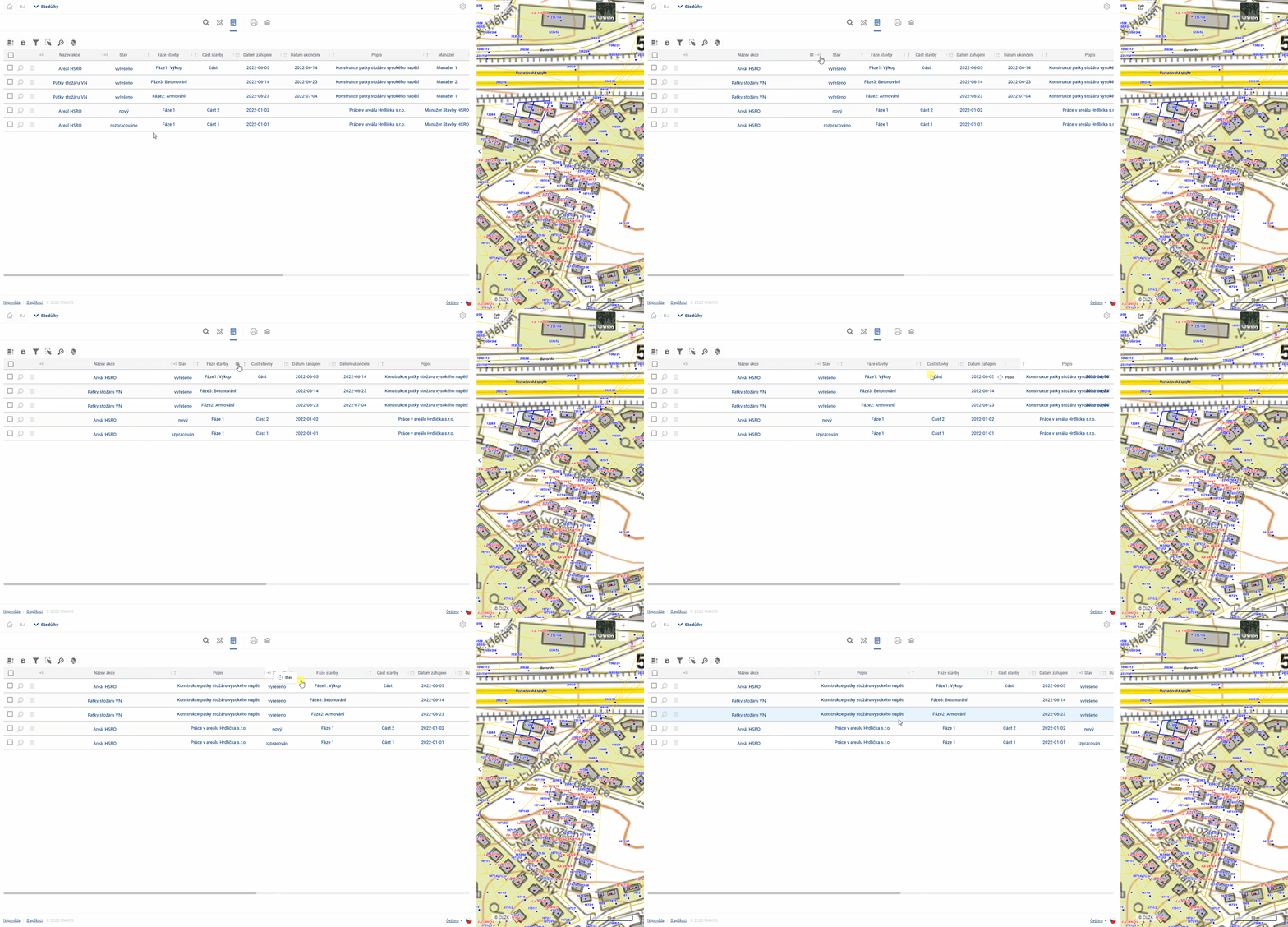
The column width and column order settings are cached in the viewer, so they remain available even if you switch to another module (e.g. Layer Organizer) and come back.
Table and form
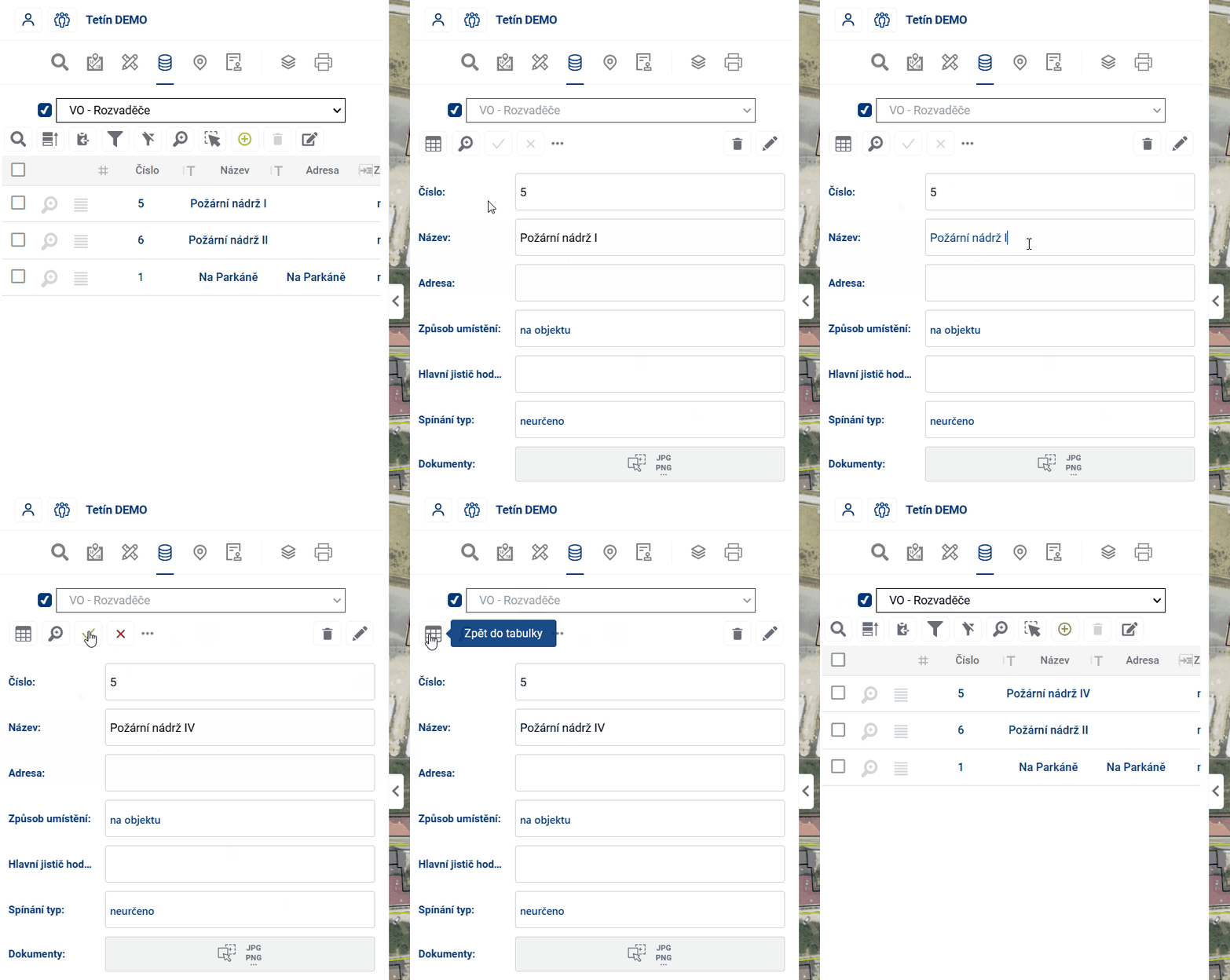
If the user is not comfortable working with the whole table, there is an option to switch the view to a form that displays only one element record, using the button on the left of the table.  One of the advantages of the form is that it can better display fields that contain text longer than one line.
If the value of the cell in the table is underlined, it means that the cell refers to a linked item in another table and it is possible to switch to the fomular of this linked item by Ctrl + click on the value (e.g. from the table Light places to the form of the connected Switchboard).
There are two ways to move between table cells:
- using the mouse - clicking on a cell will activate the cell selected by the user
- keyboard arrows - pressing the keyboard arrows moves the selected cell in the selected direction
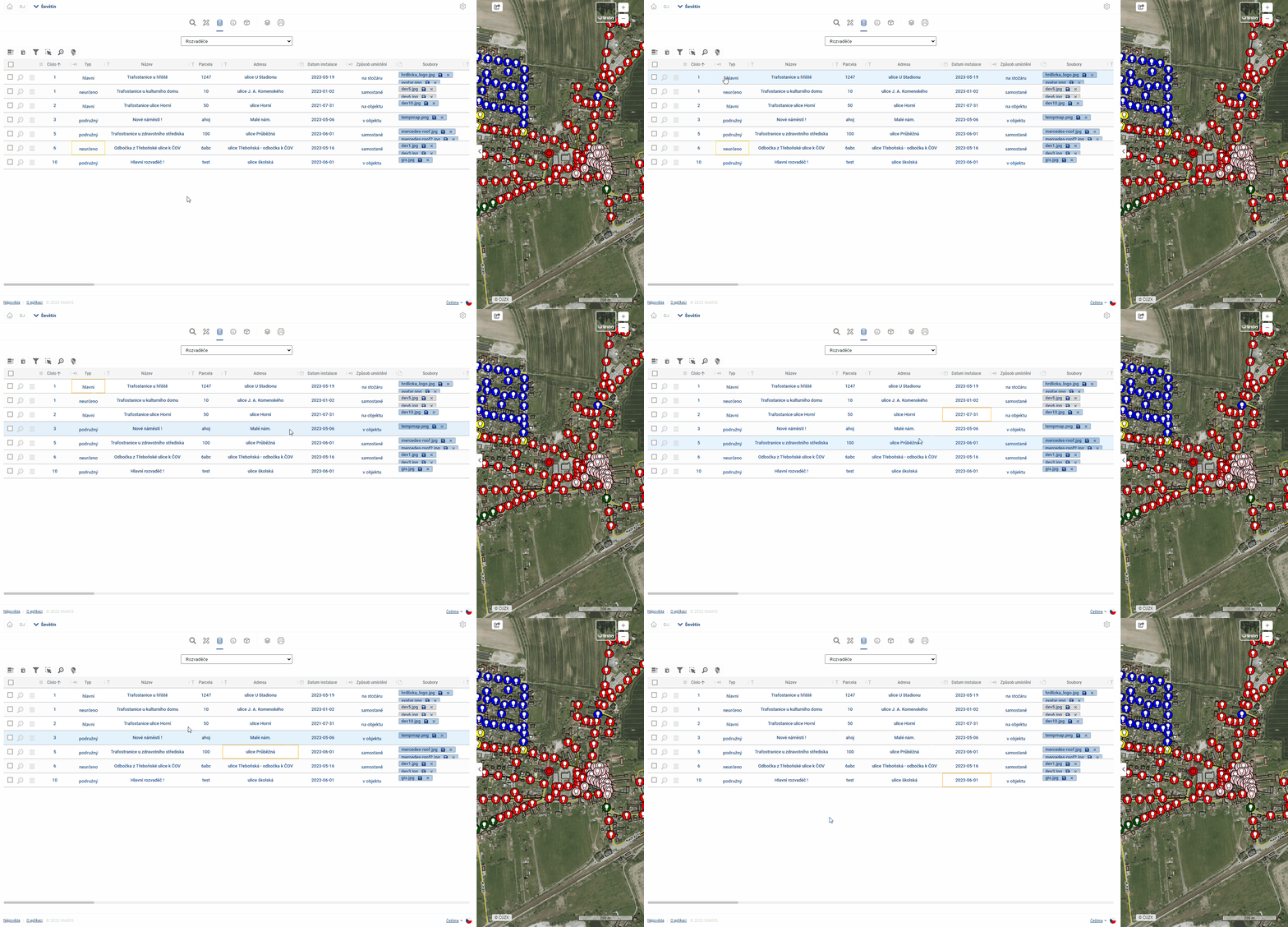
You can use Ctrl + C to copy the displayed value from the selected cell to the clipboard and then paste it into Excel, email, etc.
Edit
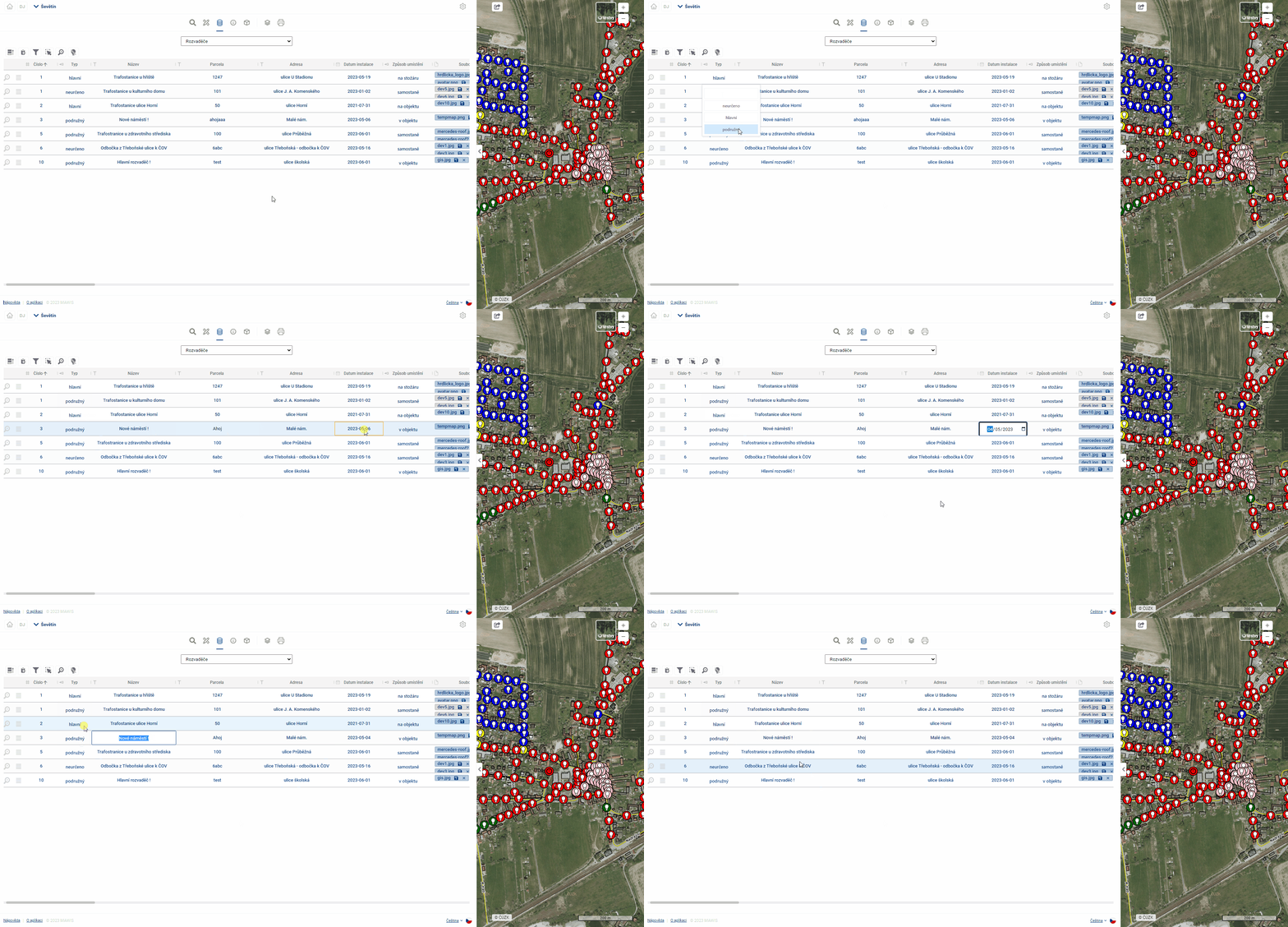
Provided that the logged in user has the “Editor” role, and the table records are set as editable, it is possible to edit the records in the table. Double-clicking on a cell or pressing the “ENTER” key will activate the cell for editing (similar to MS Excel). Subsequently, the user can overwrite the contents of the table cell. The type of editing depends on the data type of the column. For example, for the data type “Date”, the user is offered to select a date from the calendar. For text fields, the user can directly type text and for numeric values, the options are offered in a drop-down box.
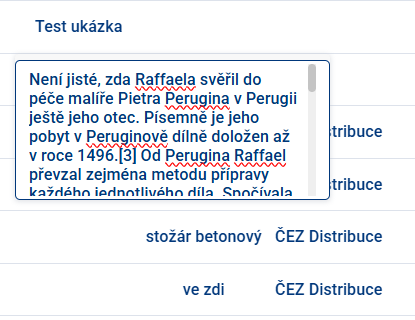
If longer text is inserted, the field is expanded and also added with a scroll bar on the side.
After editing, you need to confirm the change by pressing the “Enter” key or by simply clicking outside the edited cell. If the user tries to enter an unauthorized value into the cell, the cell will be highlighted in red. In this case, clicking outside the edited cell will return the record value to the original value.
 The column data types are shown before the column name in the table header.
Select and highlight elements
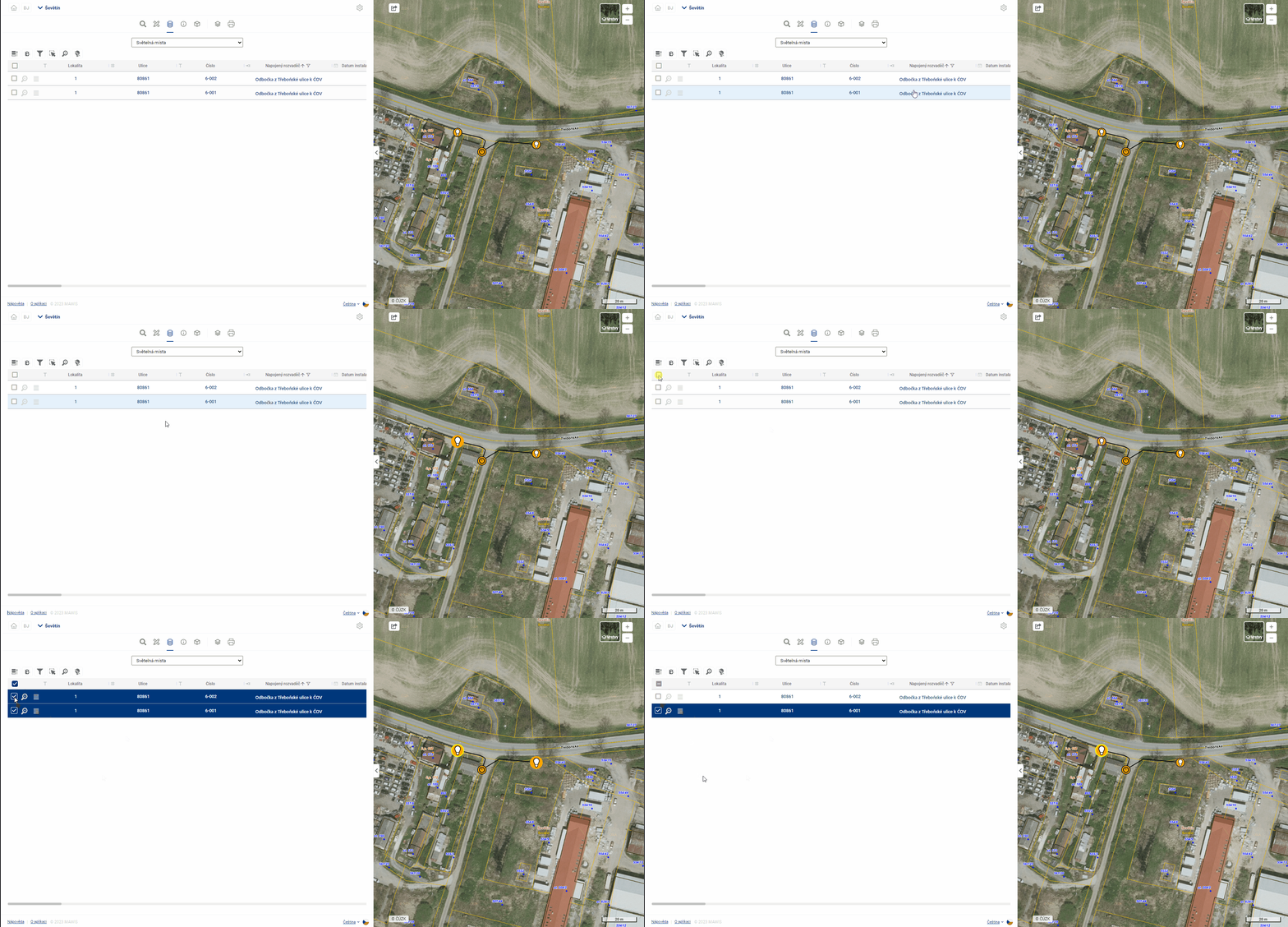
When you hover the mouse over a row in the table, the row is highlighted and the item is highlighted in the map window. The same effect works when you move the mouse over an element in the map.
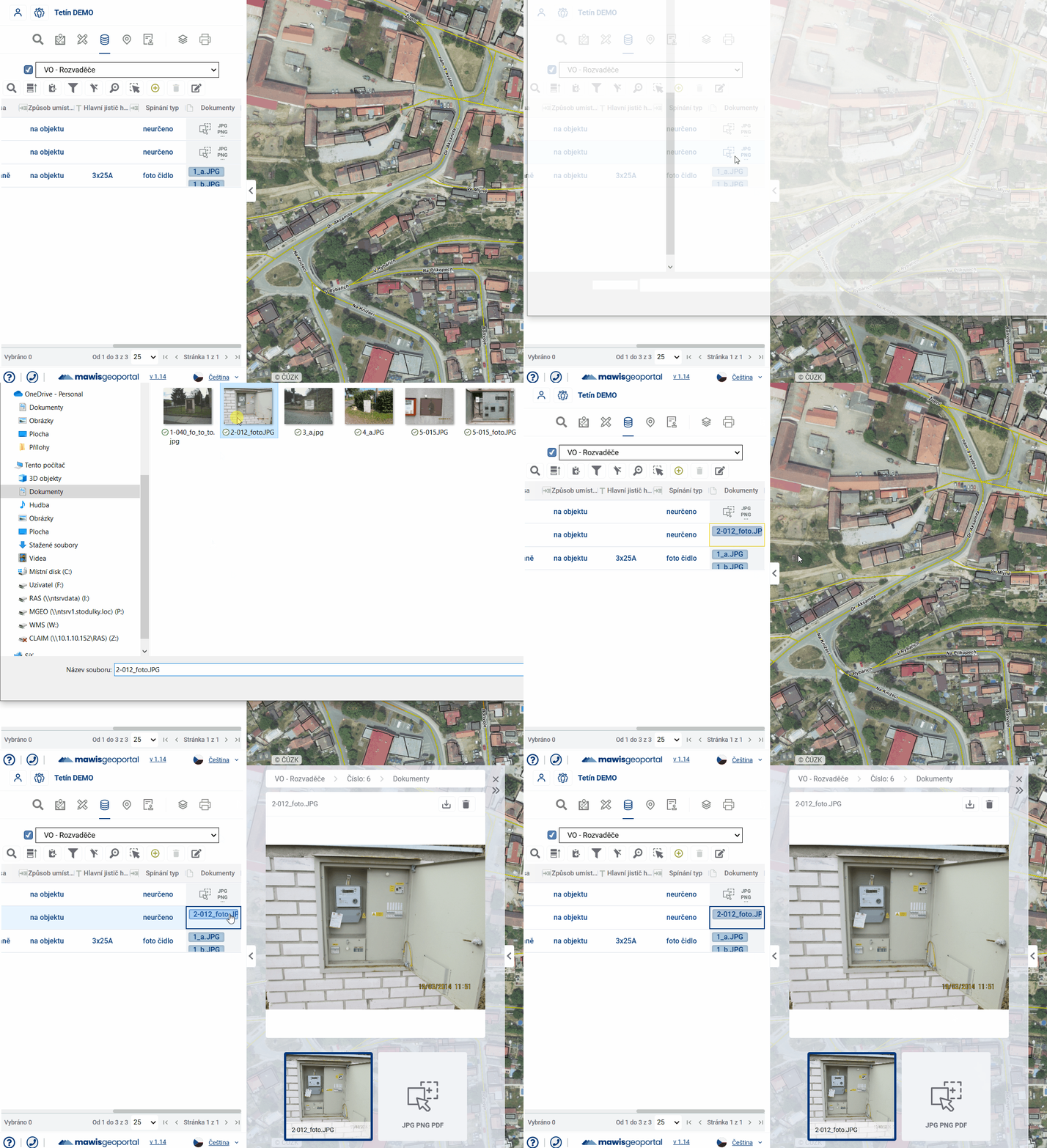
Working with files Assuming there is a file upload column in the table, files can be uploaded/downloaded/removed and viewed for each record in the table. Clicking on a file or double clicking in a field will open the File Gallery in the Display Panel and these operations can be performed there.
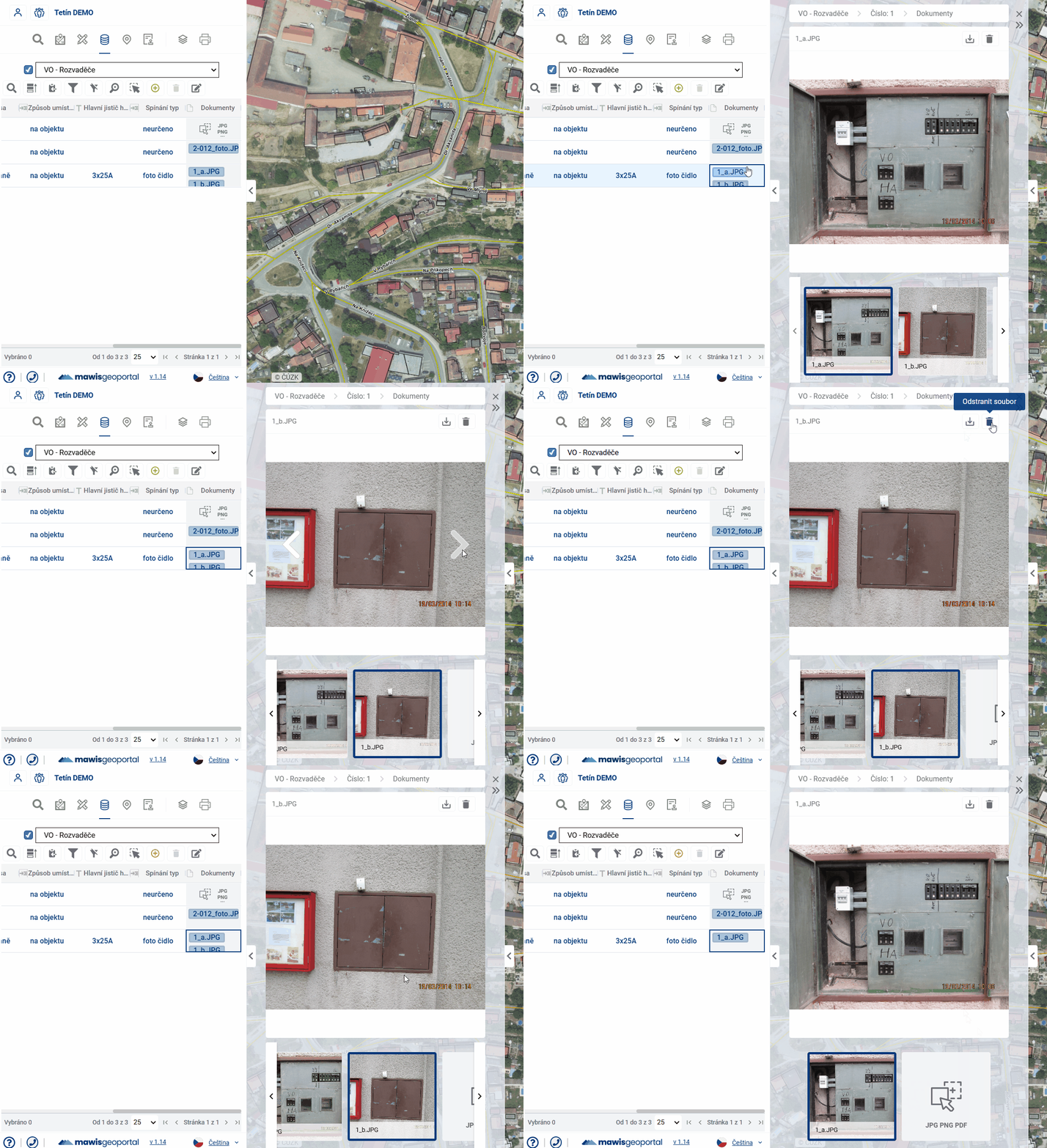
Simply clicking in the field in the table will open the File Browser, where you can again select a file to upload. The maximum file size is 20 Mb.