10. SUPPORT FOR EXPRESSION
The module support for comments is used by technical infrastructure managers who have a legal obligation to comment on requests for the existence of networks. This module assists administrators with the agenda of commenting on the existence of networks.

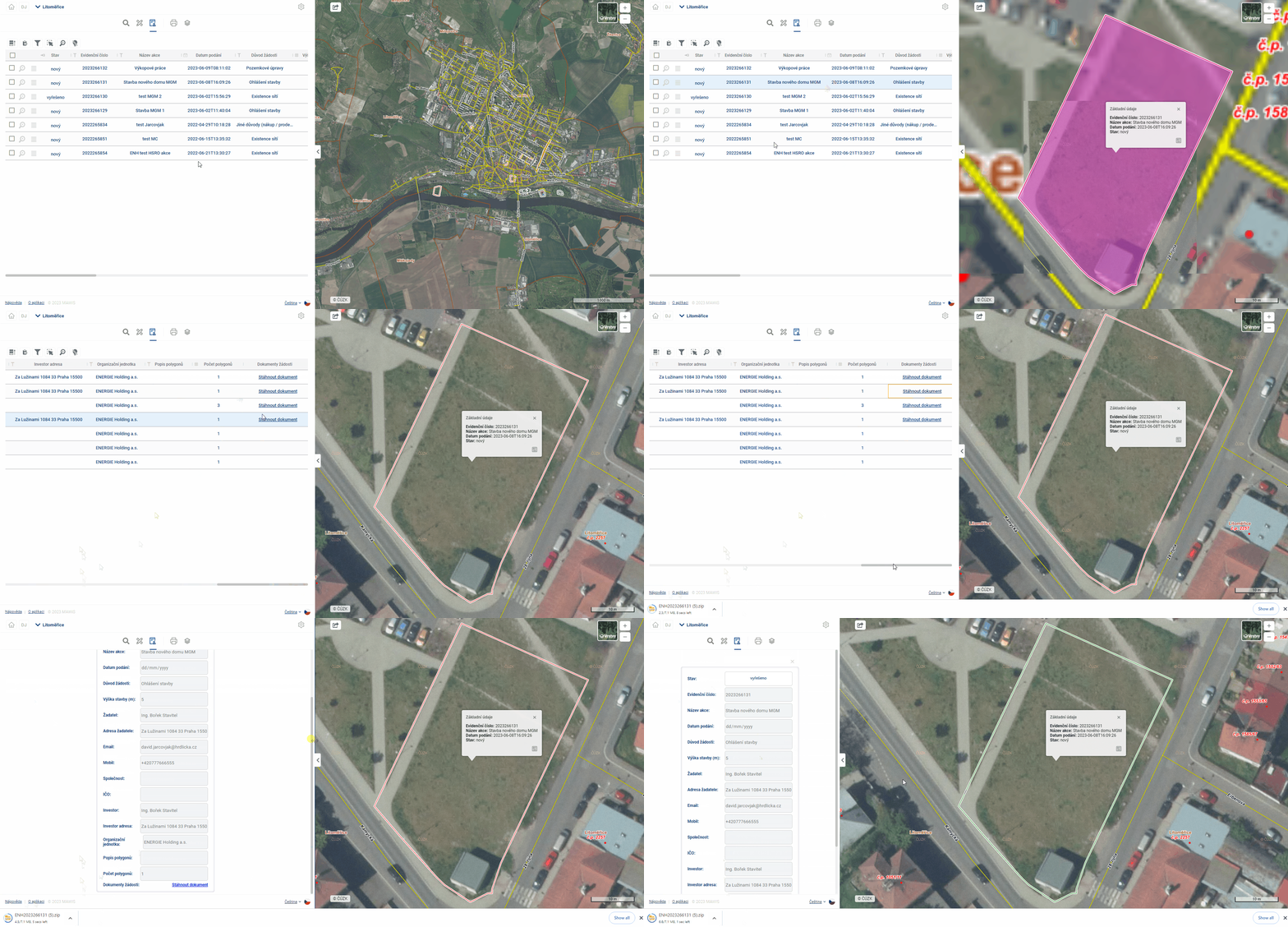
The administrator has a register of requests to be commented on in the module. Each row in the table represents one request.
- The applications are in one clear table
- The outline of the area of interest of each application is shown on a map
- Automatically move requests from MawisUtility
- You can add and plot your own request (for example, one that has been emailed or mailed to the administrator) to the table
- The administrator can record the status of a request, i.e. whether the request has already been processed
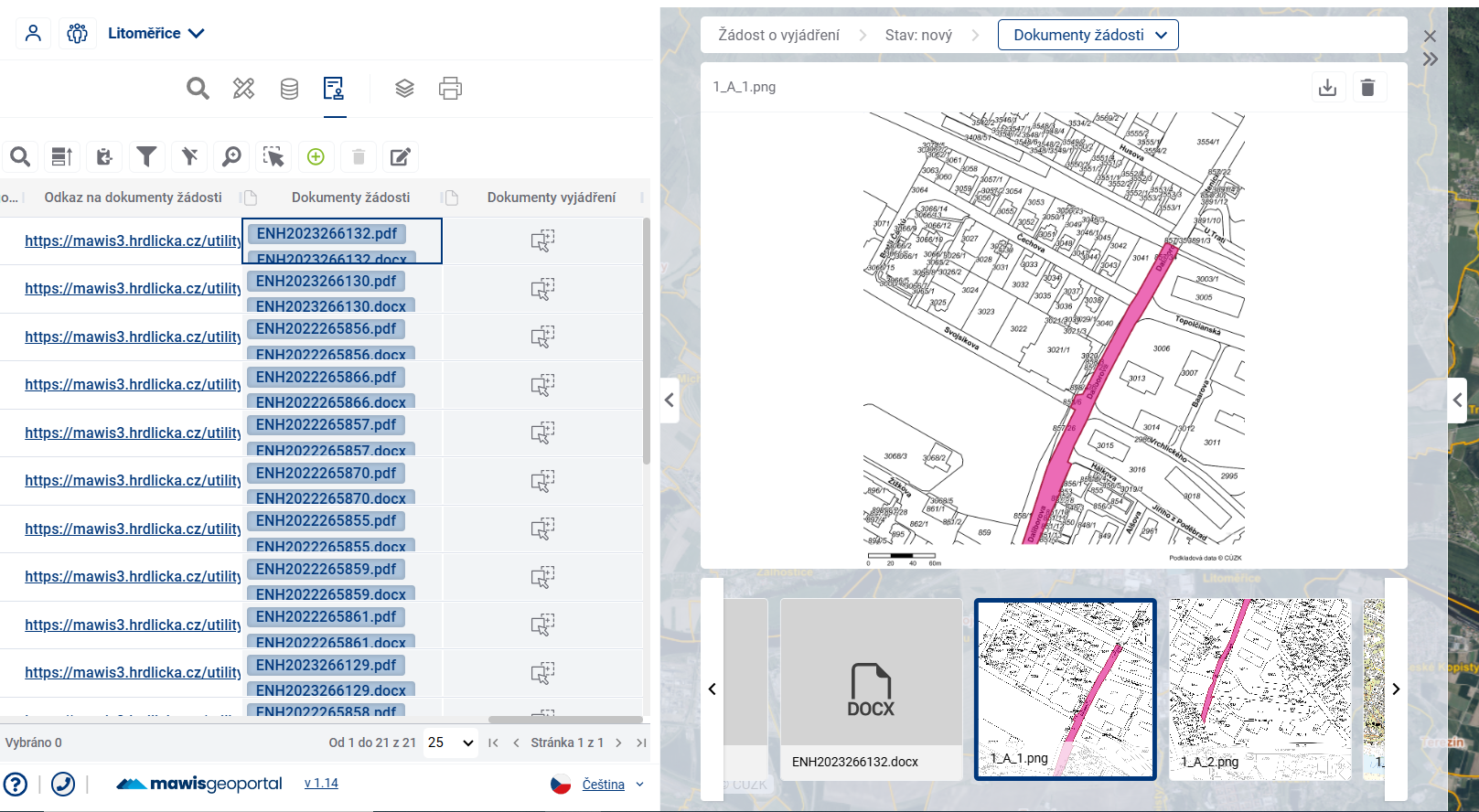
- The administrator has the ability to view and download attachments to the application (PDF of the application, drawing image, attachments to the application and more … )
- The application can be uploaded with documents of representation
- Representation documents can be sent to the applicant with one button
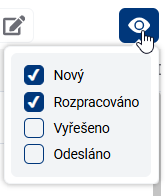
by default, the Expression Support table displays requests that have not yet been processed by the administrator (do not have a status of “Resolved” and “Sent”). The displayed requests can be filtered by the “eye” tool on the right above the table according to the processing status.
The “Representation Documents “ column is used to upload a representation to the application. This will allow the administrator to record a representation on one record of the request. In the request detail (form)  , the administrator then has the option to send the uploaded representation documents to the requester. The statement can only be sent if there is an attachment uploaded in the “Statement Documents” column.
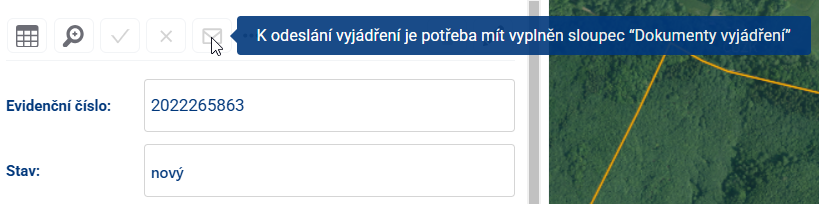
After pressing the “Send Statement “ button, a notification with a download link will be sent to the applicant’s email address by the administrator of the prepared withdrawal documents. The application is also automatically set to the “Submitted “ status. Sample notification:

The TI administrator can also have their network data uploaded to the application so they can easily visually see if requests are conflicting with the infrastructure they manage. The columns of the Expression Agenda table are administratively configurable - you can set what attributes are displayed in the table.