9.1. 3D-space control
Movement in the 3D space of the browser can be done with the mouse, keyboard and specialised functions. The use of these functions is independent of the measurement functions and can be used simultaneously without interrupting the measurement.
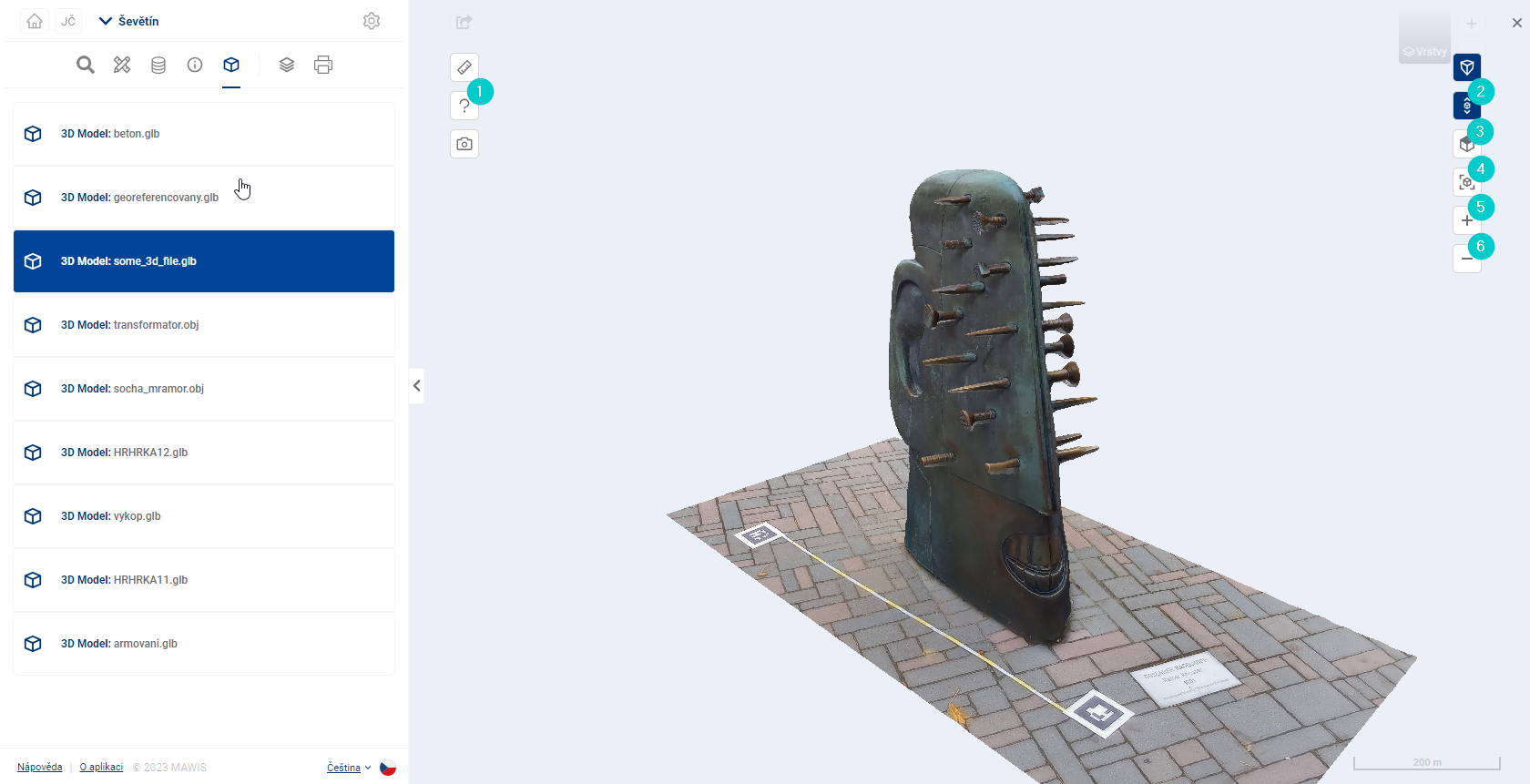
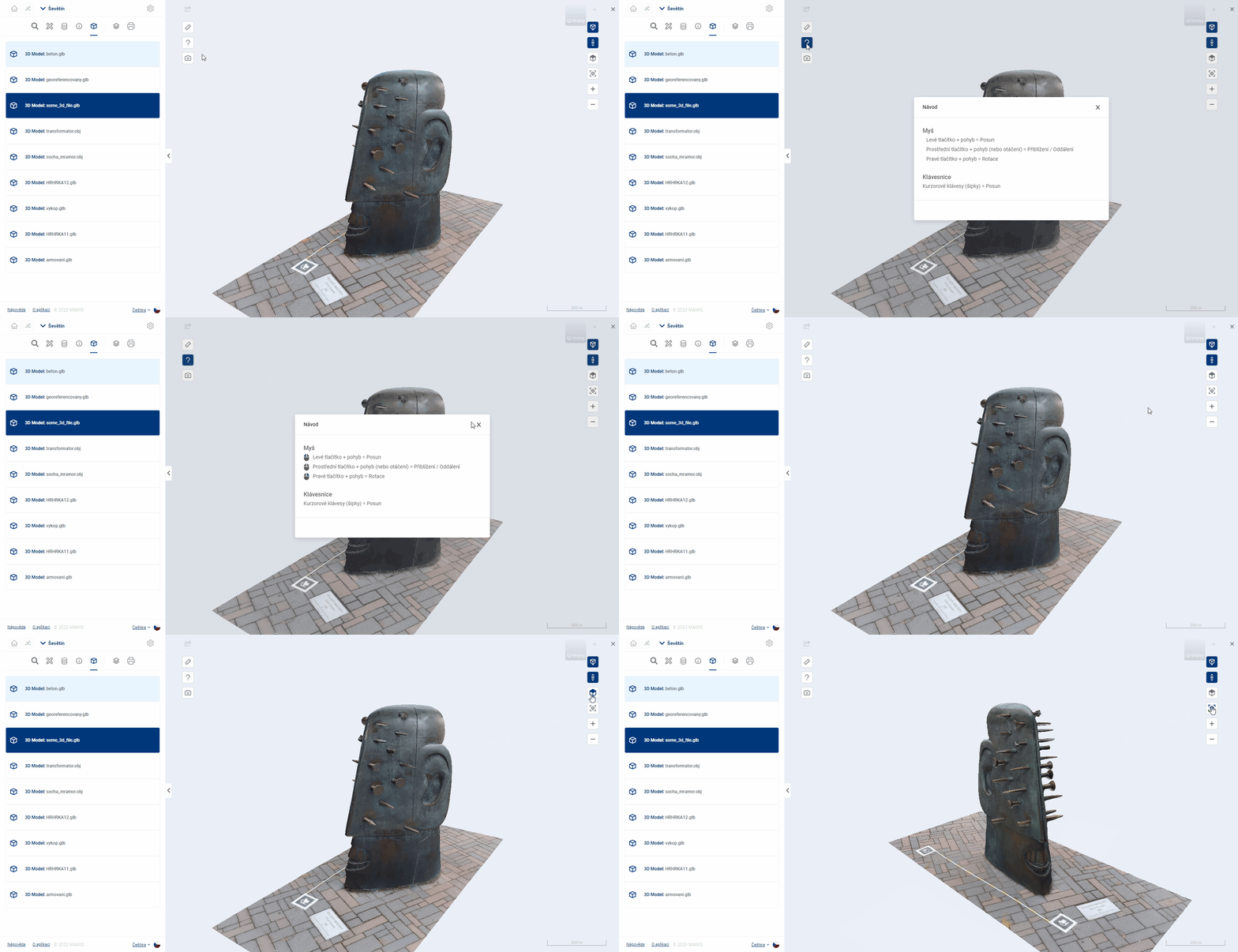
- Help - a guide describing operations that affect the 3D model display.
- Vertical Scroll - switches the navigation mode in 3D space to allow the 3D model to be scrolled vertically.
- Top view - rotates the 3D model to top view, with the projection axis parallel to the Z axis.
- Default view - returns the 3D model to the same view as after loading. The model will be displayed in its entirety from the oblique ISO view.
- Zoom - zooms in on the 3D model.
- Delay - delays the 3D model.
FAVOR
The model can be moved in 3D space using the cursor keys or by grabbing the model with the right mouse button and moving the mouse.


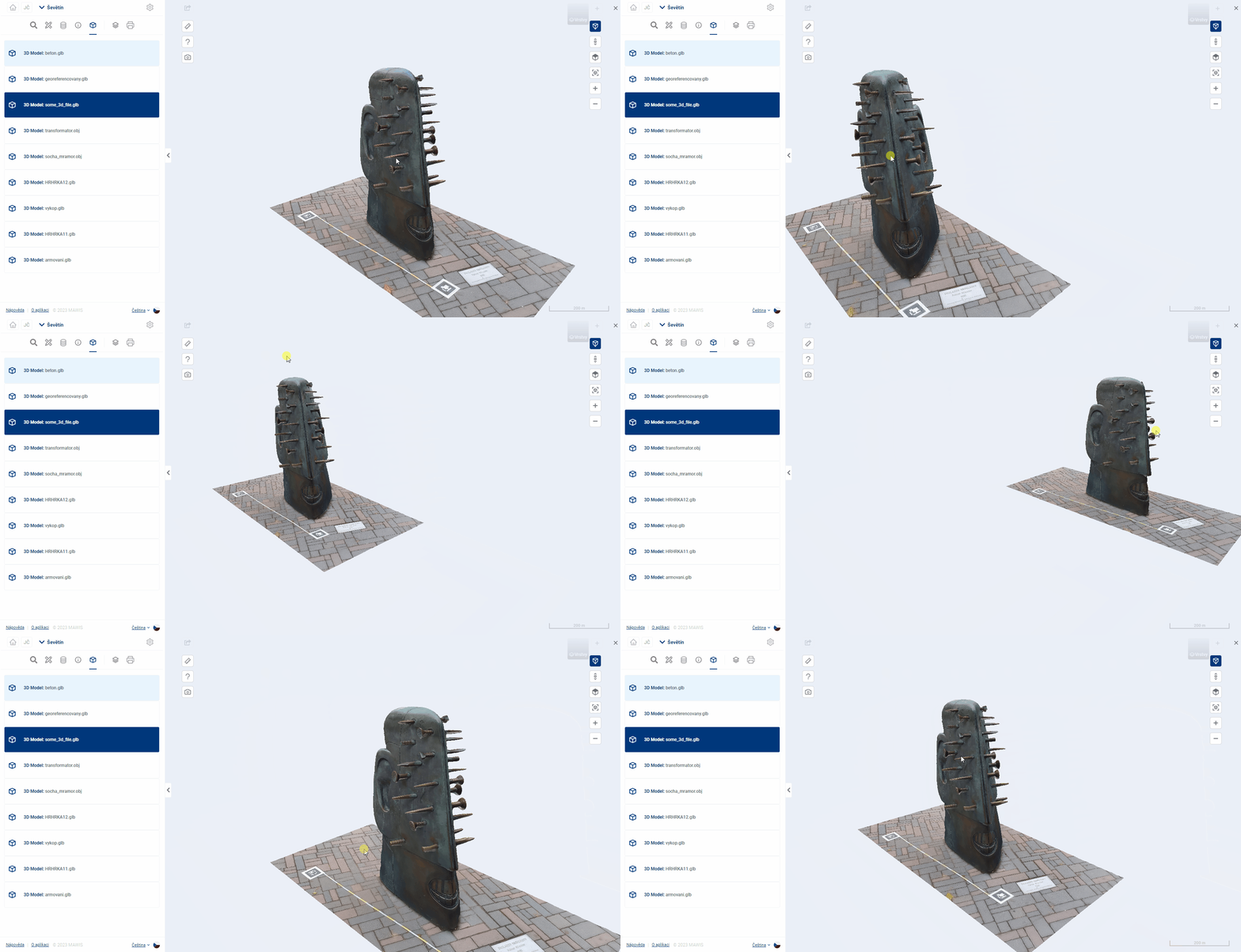
In the default mode, the model shifts in the horizontal plane. This mode is suitable for horizontally oriented 3D models, such as excavations.
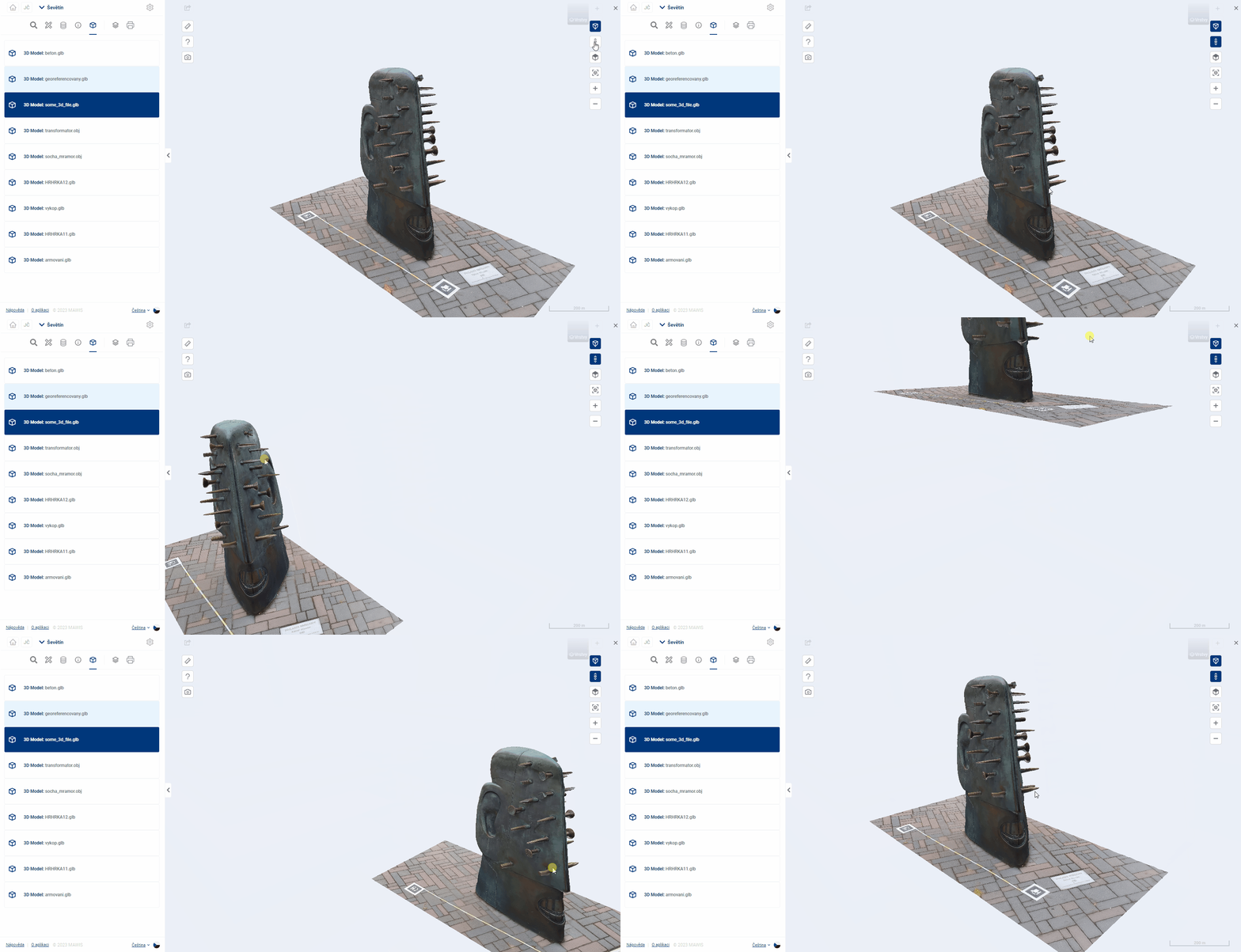
Alternatively, Vertical Shift (#6 above) can be activated to shift the plane in which the 3D space is rotated. This mode is suitable for vertically oriented 3D models, such as sculptures.
ZOOM
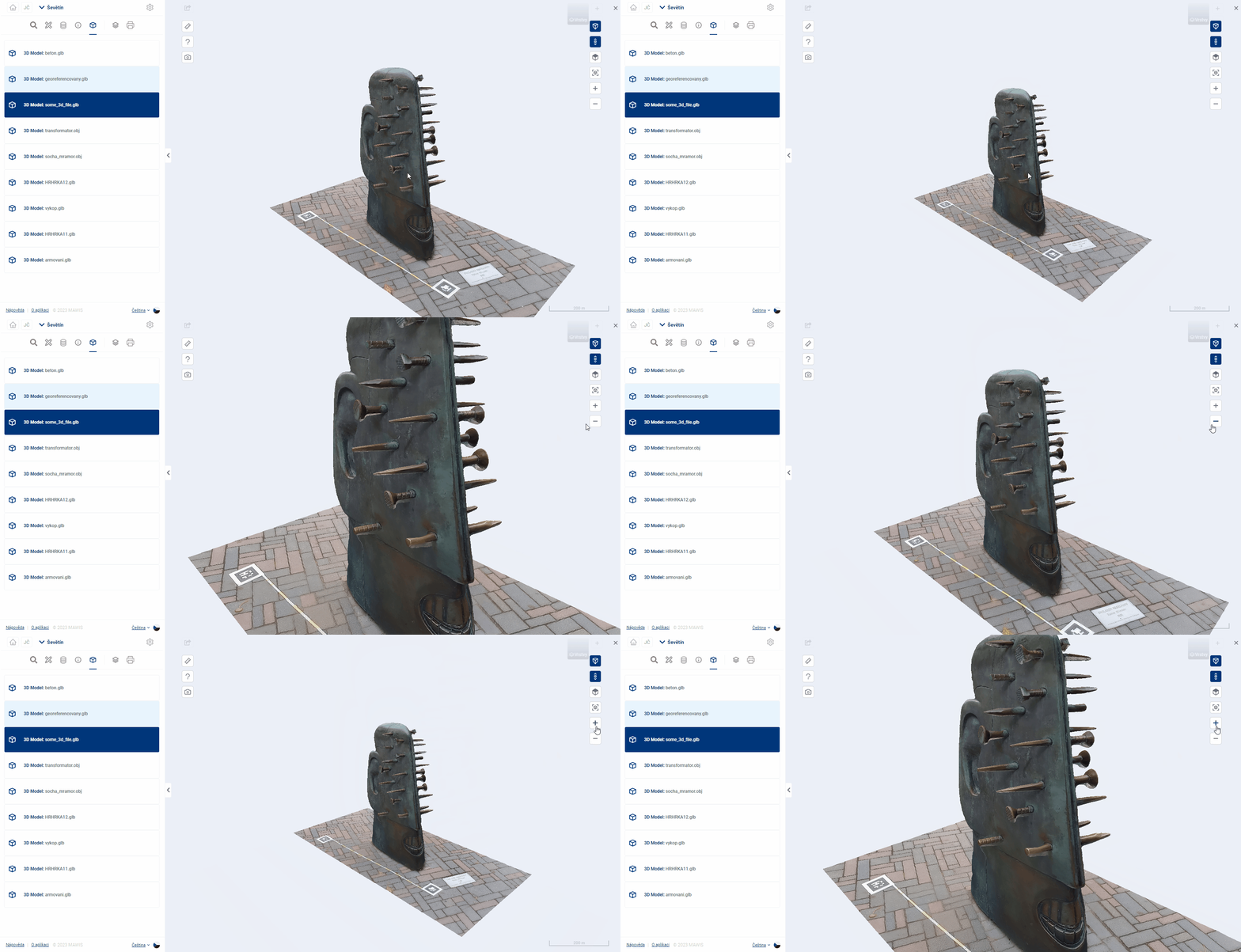
The model can be zoomed in or out with the mouse wheel, by pressing the wheel and moving the mouse, or by using the  and
and  buttons.

ROTATION
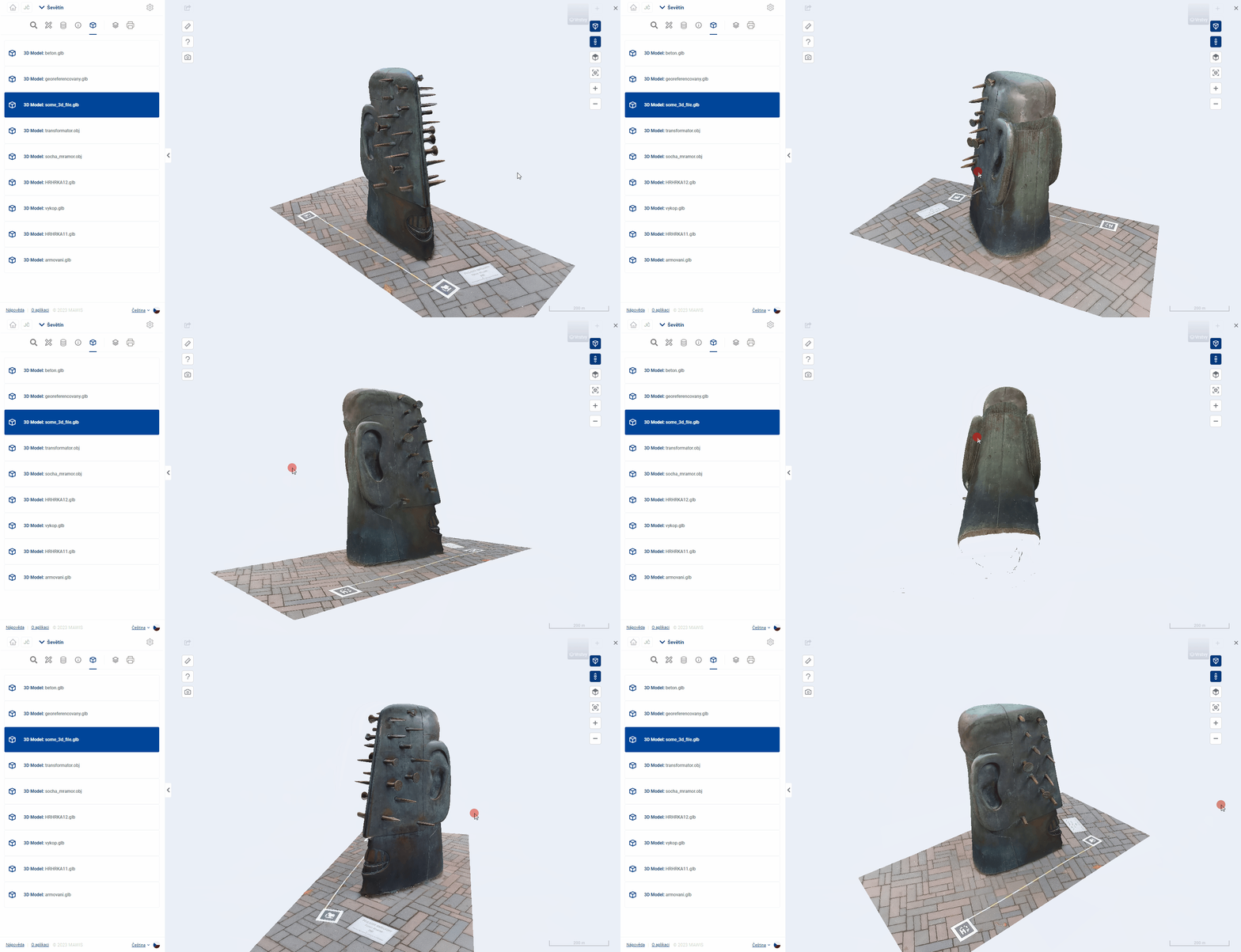
The model can be rotated by holding down the right mouse button and moving the mouse.

OTHER NAVIGATION FUNCTIONS
Demonstration of Hint, Top View and Default View: